
TL;DR
Open the LAZ to PCD converter, choose a supported local LAZ file, inspect its metadata and preview, then convert and download the PCD file.
This online tool processes the file locally in your browser. No upload, login, or installation is required.
Why convert LAZ to PCD?
LAZ stores compressed LAS point records and is common in LiDAR workflows. PCD is the Point Cloud Library file format, commonly used with PCL and robotics software. Conversion is useful when the next program accepts PCD but cannot open LAZ directly.
It changes the file representation. It does not automatically transform the coordinate reference system, change units, or register multiple clouds.
1. Open the LAZ file
Choose a .laz file or drag it onto the converter. The ordinary LAS/LAZ reader supports LAS 1.0-1.3 point formats 0-3. LAS 1.4 and newer point formats are not supported by this conversion path.
COPC has a separate streaming viewer. Whole-dataset COPC conversion is not available through this LAZ-to-PCD workflow; see COPC explained for the distinction.
2. Inspect metadata and geometry
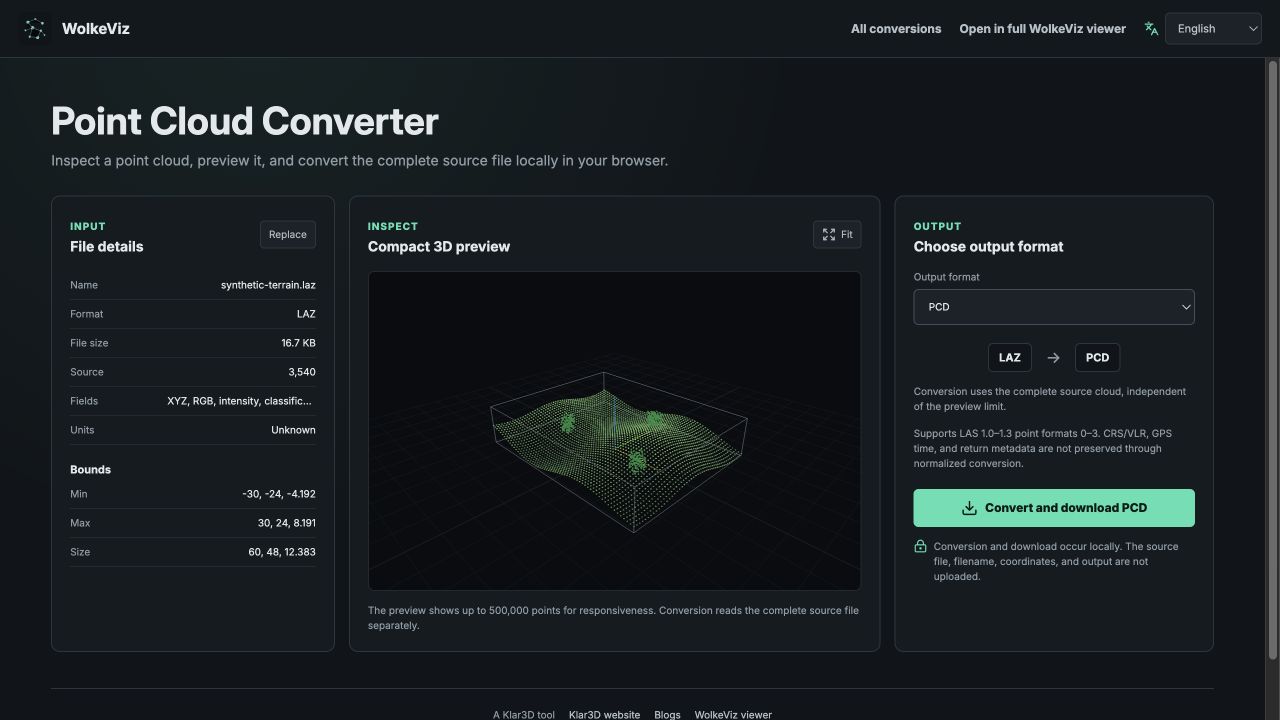
The screenshot above shows WolkeViz’s built-in synthetic terrain sample loaded through the LAZ-to-PCD route: 3,540 source points, a compact 3D preview, and PCD selected as the output. It illustrates the controls with test data, rather than a customer recording.
Review the source point count, fields, and bounds. Fit the compact preview to check that the source has the coverage and orientation you expect. A lower displayed point count reflects the preview budget, not necessarily missing source points.
If you are unfamiliar with PCD, the PCD viewer guide explains how its declared fields describe the point records.
3. Review what the output preserves
Select PCD if it is not already selected. The binary PCD writer supports XYZ and available RGB, intensity, classification, return number, and number of returns. Preservation is also limited by what the source reader brings into the converter’s normalized point model.
Do not treat the output as a complete LAS archive. CRS definitions, VLRs, GPS time, and other LAS metadata are not preserved through normalized conversion. Keep the original file and coordinate-system documentation alongside the result, and review any attribute-loss warnings.
4. Convert and download
Start conversion and wait for the output. The converter reads the complete original source independently of the bounded preview. PCD may take more disk space than compressed LAZ, so leave room for the download.
Open the PCD in the intended application and compare point count, bounds, geometry, and the fields you need. This is especially useful before converting a large collection.
Convert several files or another format
For multiple LAZ files, follow batch point-cloud conversion. For the reverse direction, open PCD to LAZ. For text coordinates, use the XYZ, CSV, and PTS tutorial.