
Open WolkeViz Watch on YouTube
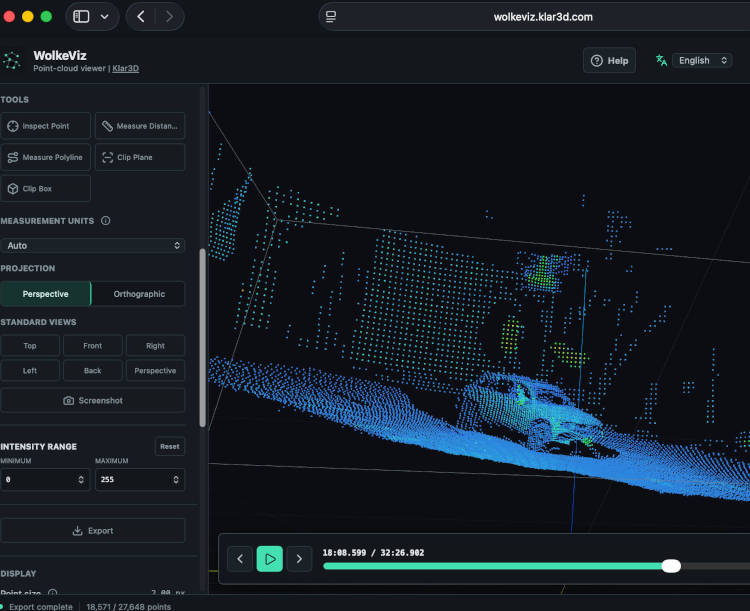
1. Open WolkeViz in a browser
Open WolkeViz in a modern browser. It works on phones and tablets too, but a laptop or desktop is the most comfortable option for viewing a full point cloud, the left-side controls, and the recording timeline together. No ROS 2 desktop installation, conversion server, login, or account is required for this local-file workflow.
2. Open or drag in the MCAP file
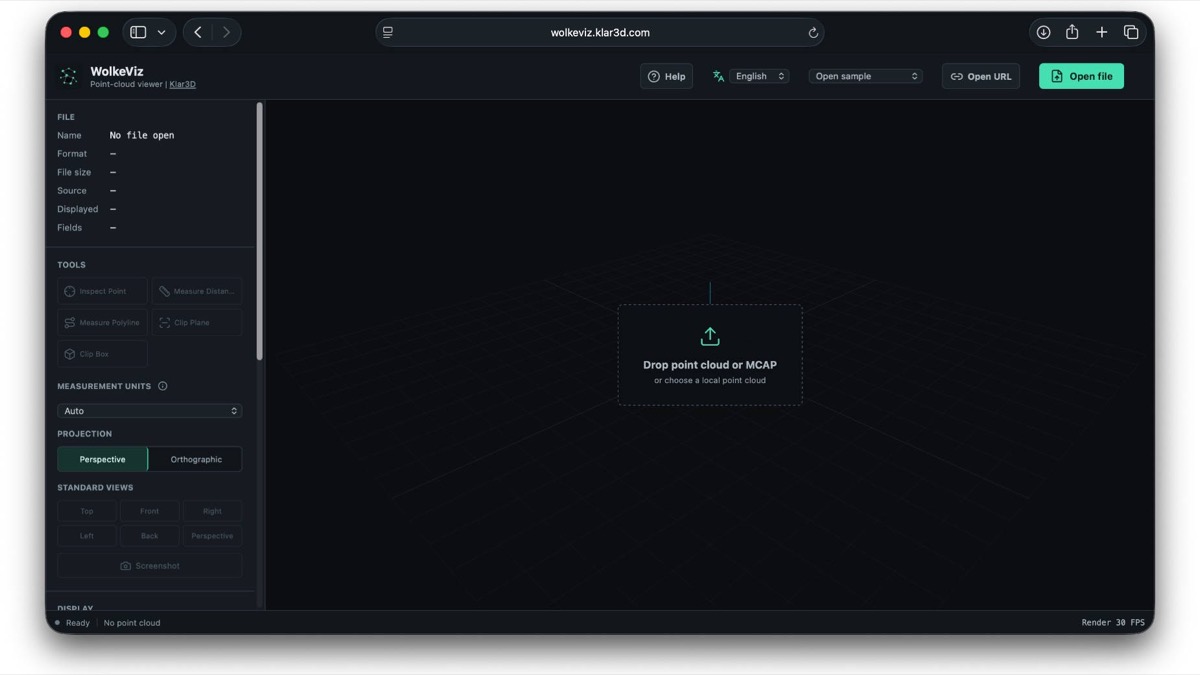
Choose Open file or drag the recording onto the viewer. This tutorial is for an indexed ROS 2 MCAP recording that contains a sensor_msgs/msg/PointCloud2 topic. The selected file is read locally in the browser; it is not uploaded to Klar3D or a cloud conversion service.
WolkeViz also opens single PLY, PCD, LAS, LAZ, and COPC files. For a sequence, you can open one ZIP containing PLY, PCD, LAS, or LAZ entries, or select multiple loose PLY, PCD, LAS, or LAZ files together.
3. Choose the PointCloud2 topic and inspect the first frame
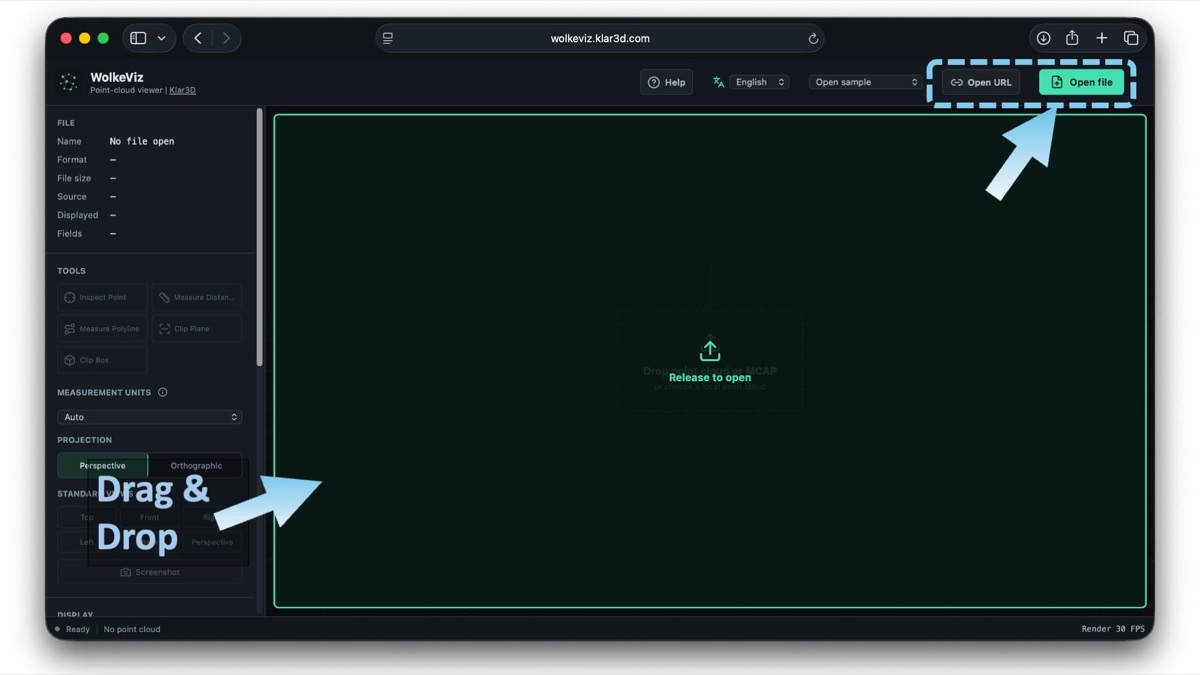
After the file opens, the left panel shows file details such as size, duration, message count, source, displayed point count, and available fields. If the recording contains more than one PointCloud2 stream, choose the one you want under Point-cloud topic. A recording with one compatible stream is selected automatically.
The controls along the bottom let you play or pause, step to the previous or next frame, and choose playback speed. Use them to confirm that you selected the intended LiDAR stream before inspecting or exporting data.
4. Jump directly to the moment you need
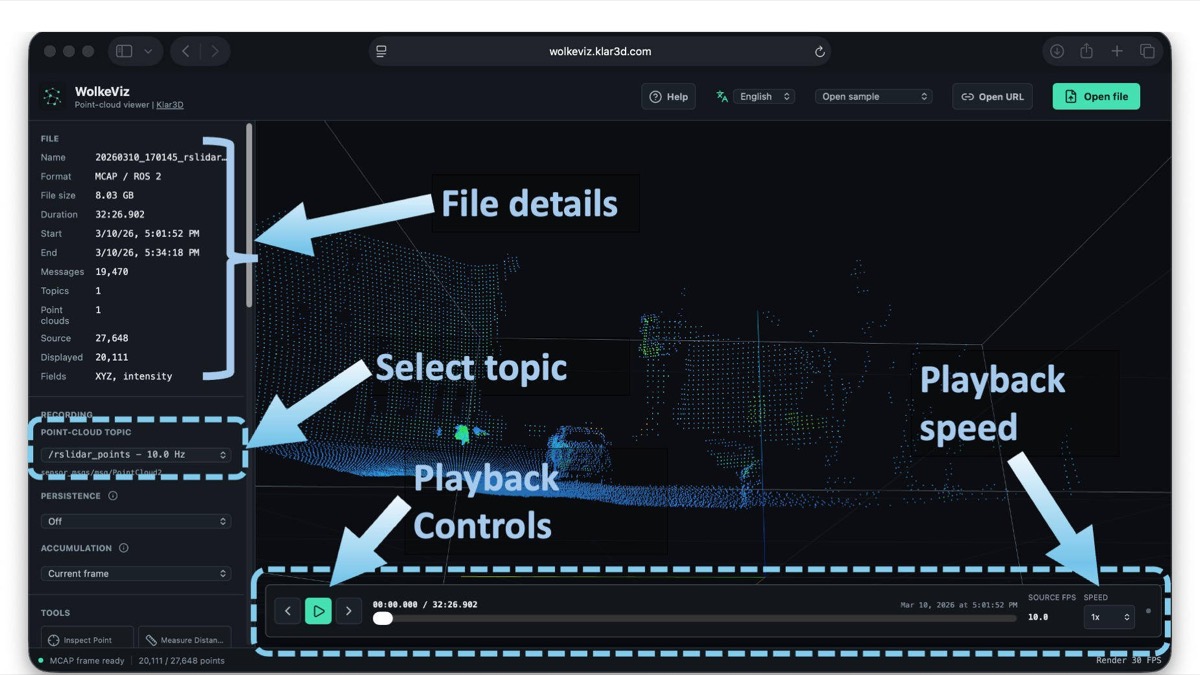
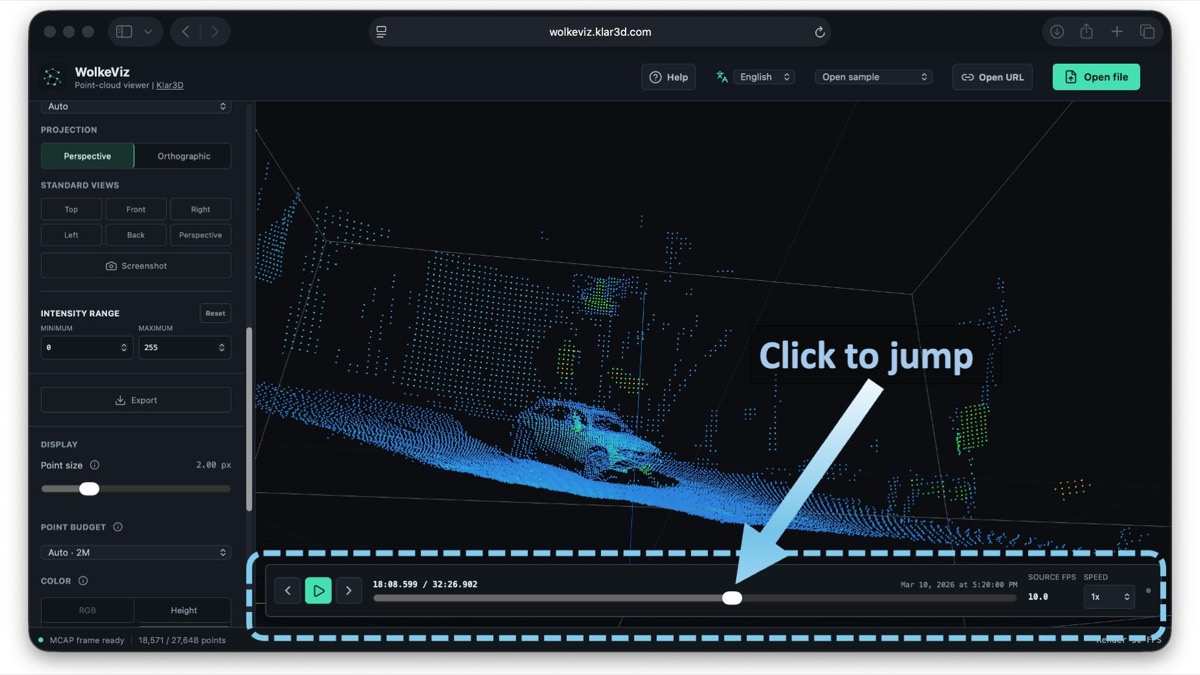
Click anywhere on the timeline seek bar to move to a different time in the recording. This is useful when you know roughly where a vehicle, object, route segment, or sensor event occurs and do not want to play through every frame. You can then use previous and next frame controls for a closer inspection.
5. Scroll the left panel to inspect, measure, and change views
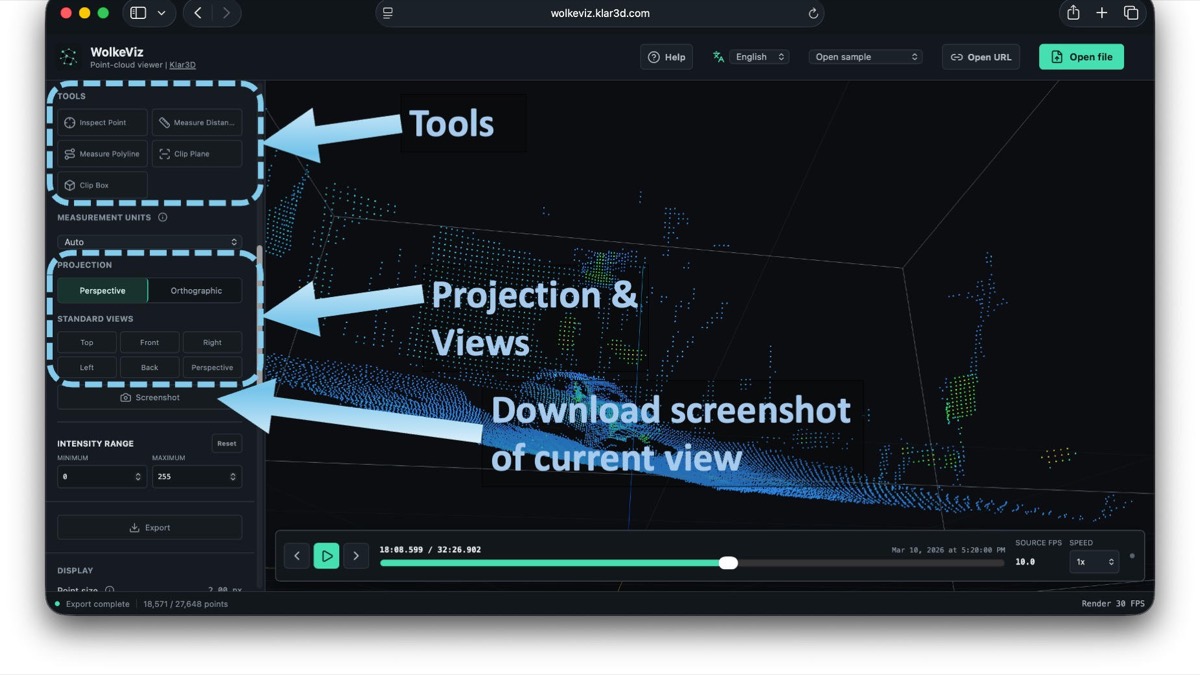
Scroll the left panel to reveal more controls. The available tools include Inspect Point, Measure Distance, Measure Polyline, Clip Plane, and Clip Box. Use them to examine point attributes, measure a straight-line distance or route, and isolate part of a scene.
The same panel provides perspective and orthographic projection options plus standard top, front, right, left, back, and perspective views. The Screenshot button downloads a PNG of the current 3D view, including the visible points and active helpers.
6. Use Clip Box to focus on part of the point cloud
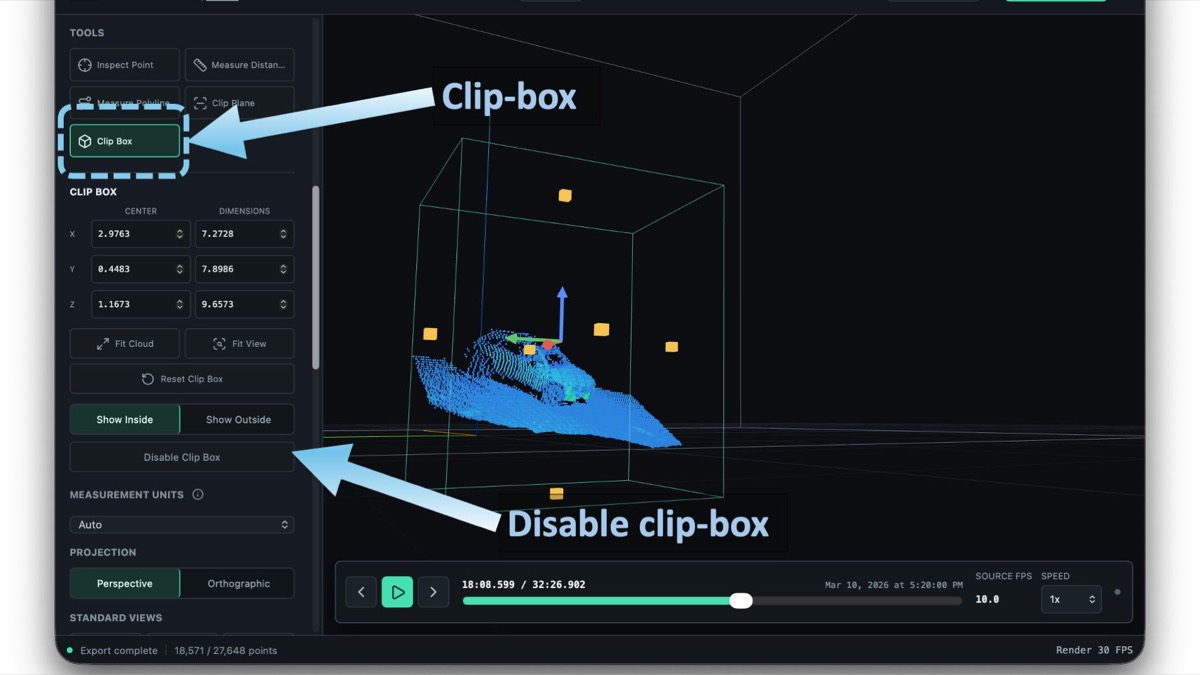
Select Clip Box to place an adjustable 3D box around the area you want to study. Drag its handles in the scene or enter precise center and dimension values in the panel. Choose whether to show points inside or outside the box, then continue using the viewer tools on the focused area.
An active tool has a green status dot beside it. To stop using a tool, select it and use its Disable button—for example, Disable Clip Box. The current clip box can also be applied when exporting selected frames.
7. Export one frame or curate a smaller PointCloud2 dataset
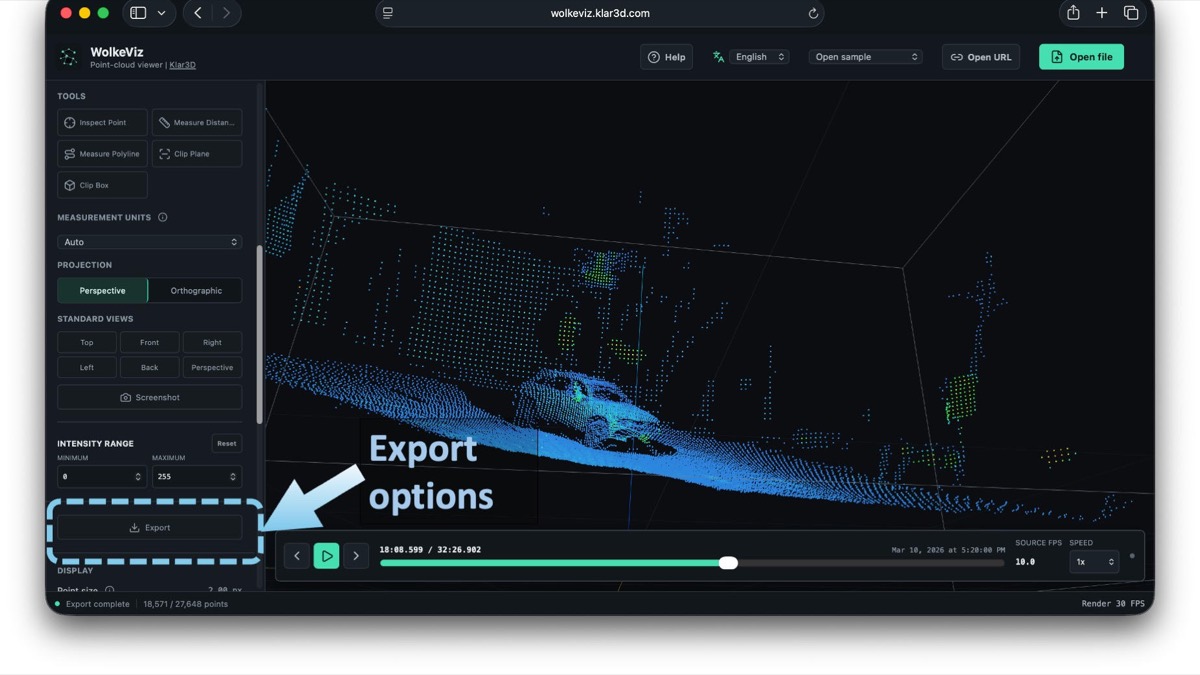
Scroll farther down the left panel and select Export. You can download the current frame as a binary PCD file, or choose multiple frames for a PCD ZIP. For recordings, select a frame range, export every nth frame, or request a fixed number of evenly distributed frames across a range.
This is useful for creating small samples for annotation, model evaluation, bug reports, or sharing with colleagues. For multi-frame exports, WolkeViz packages the PCD frames in a ZIP with a provenance manifest; export is decoded again from the source so the display point budget does not reduce the exported frame resolution.
What this MCAP workflow supports
WolkeViz is for indexed ROS 2 MCAP recordings with sensor_msgs/msg/PointCloud2 streams. It is not a general viewer for every MCAP schema: camera, GPS, IMU, TF, diagnostic, raw packet, ROS 1 bag, and SQLite .db3 rosbag2 data need their own appropriate tools. For the MCAP container format itself, see the official MCAP guide for ROS 2 .
For another demonstration, visit the Klar3D YouTube channel .