
Open Klar3D Point Cloud Converter
TL;DR
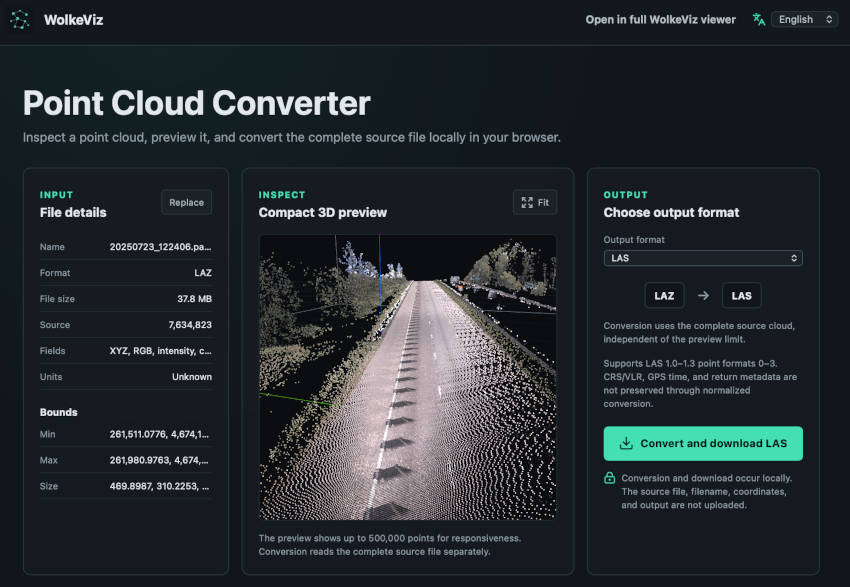
Go to the Klar3D Point Cloud Converter, drag and drop a point-cloud file (or ZIP of these files) or open one from your computer, choose the format you want to convert it to, and download the converted file.
No software installation. No login. Your local file is processed in your browser rather than uploaded to WolkeViz.
How to convert a point-cloud file
1. Open or drag and drop your file
Go to the Point Cloud Converter and select a file or drag it onto the converter. A ZIP can be useful when working with a group of supported point-cloud files.
2. Inspect the file
Once opened, the converter displays information about the file, such as its detected format and basic metadata. Where supported, it also provides a 3D preview so you can check that the scene looks as expected before converting it.
3. Choose the format to convert to
Select an available output format. The converter only offers formats supported for the selected input, so the available choices depend on the file and workflow. Inspect the source first, then choose the output that fits the next step.
4. Convert and download
Start the conversion and wait for the browser to finish processing the file. When the result is ready, download the converted file. The source remains on your computer throughout the local browser workflow.
Common point-cloud conversion workflows
The converter is designed for practical LiDAR and point-cloud conversions. Current workflows include:
- PCD to LAZ
- XYZ to LAZ
- LAS/LAZ and other point-cloud format conversions where an available converter route supports that input and output
- ROS 2 MCAP PointCloud2 to PCD
- ROS 2 MCAP PointCloud2 to LAZ
The output options are limited to formats supported by the selected input. Check the converter screen for the available choices rather than assuming every format can be converted to every other format.
Converting point clouds from ROS 2 MCAP
MCAP is a container for recorded messages, not a point-cloud format by itself. A ROS 2 MCAP recording may contain multiple topics and message types. WolkeViz can inspect ROS 2 MCAP recordings that contain sensor_msgs/msg/PointCloud2 data and lets you select the relevant point-cloud data before conversion.
For a supported recording, open the MCAP converter, select the PointCloud2 data you want to inspect, check the metadata and 3D preview, then choose an available PCD or LAZ output route. This is useful when you need a standalone point-cloud file for inspection, sharing, downstream processing, or a smaller test workflow.
These routes cover the documented PointCloud2 case; WolkeViz is not a universal converter for arbitrary MCAP topics or schemas. Camera, IMU, GPS, TF, diagnostics, custom messages, and other non-PointCloud2 data require tools that understand those message types.
Why use an online point-cloud converter?
A browser-based point-cloud converter is useful when you need a quick first conversion without installing a specialist desktop tool. It can help you:
- check metadata and bounds before committing to an output
- preview a scene in the shared WolkeViz 3D viewer
- convert a file locally in the browser
- download the converted result
Local processing also means your selected file does not need to be sent to a conversion server. Verify the output against the source and retain the source file and metadata when the conversion is part of a regulated or reproducible workflow.
Step-by-step converter tutorials
- Inspect an Ouster PCAP recording with its matching sensor JSON.
- Select E57 scans and convert to LAZ or PCD using the prototype reader.
- Batch convert point-cloud files with one input and output format per batch.
- Export Ouster PCAP frames as LAZ or PCD, individually or in a ZIP.
- Convert LAZ to PCD for compatible downstream workflows.
- Convert XYZ, CSV, or PTS to LAZ after checking the text layout.
Start converting
Open the Klar3D Point Cloud Converter to inspect a file and choose an available conversion workflow. If you need the full viewer rather than a conversion workflow, open WolkeViz.