
Open MCAP to LAZ Open MCAP to PCD
TL;DR
Use the Klar3D MCAP to LAZ converter to open a supported ROS 2 MCAP recording, select its PointCloud2 topic and frame, and download the point cloud as LAZ. Use the MCAP to PCD converter when PCD is the better next format. Multi-frame workflows can package the selected LAZ or PCD outputs as a ZIP.
No installation. No login. The recording is processed locally in your browser rather than uploaded to Klar3D.
What this MCAP conversion workflow supports
MCAP is a recording container, not a point-cloud format by itself. This workflow is for indexed ROS 2 MCAP recordings that contain sensor_msgs/msg/PointCloud2 data, such as a LiDAR topic. If a recording contains several compatible point-cloud topics, you can select the one you want before converting it.
It is not a universal converter for every MCAP message type. Camera, IMU, GPS, TF, diagnostics, and custom messages need tools that understand those schemas.
How to convert MCAP to LAZ or PCD
1. Open the MCAP converter
Choose the MCAP to LAZ route or the MCAP to PCD route. Select your local .mcap file or drag it into the converter.
2. Inspect the recording
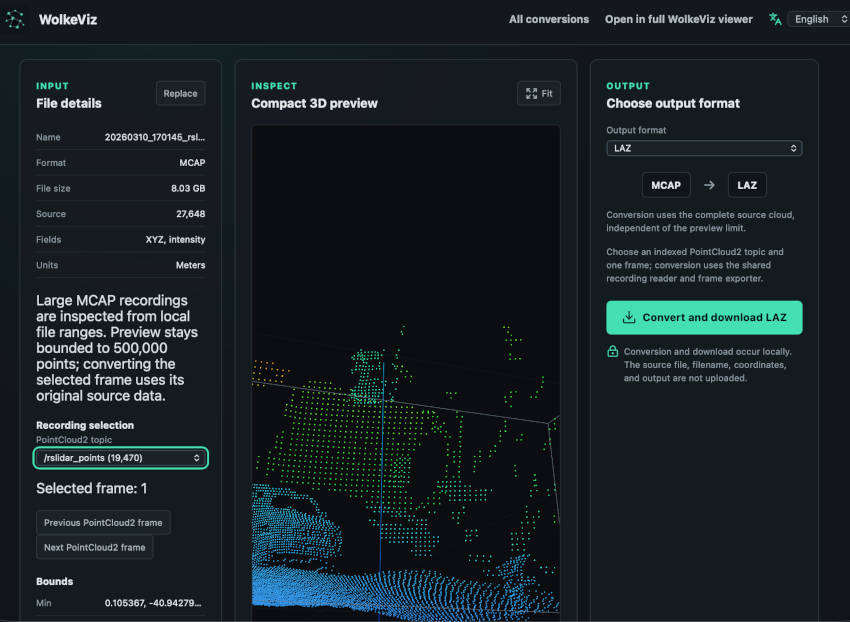
The converter reads the recording locally and shows file details, available PointCloud2 data, and a compact 3D preview where supported. Use the metadata and preview to confirm that you opened the intended recording.
Large recordings may take time to inspect. The preview is bounded for browser responsiveness; conversion uses the selected source data rather than treating the preview as the complete dataset.
3. Select the point-cloud topic and frame
Choose the relevant PointCloud2 topic when more than one is available. Then select the frame or frames you want to convert. This lets you extract useful LiDAR data from a recording without converting unrelated messages.
4. Choose LAZ or PCD
Select the output format that fits your next step:
- LAZ is a compressed point-cloud format suited to many LiDAR workflows.
- PCD is useful for workflows and tools built around the Point Cloud Library format.
The available output depends on the converter route and selected input. Use the format shown by the converter rather than assuming every MCAP recording supports every output.
5. Convert and download
Start the conversion and wait for the browser to finish. Download the resulting LAZ or PCD file. When multiple frames are selected, download the generated ZIP containing the selected point-cloud outputs.
When to use MCAP to LAZ
Use MCAP to LAZ when you want a compact, standard LiDAR file for downstream point-cloud processing, storage, or sharing. The conversion uses the selected PointCloud2 data and retains the source point data at conversion time rather than exporting only the points visible in the preview.
When to use MCAP to PCD
Use MCAP to PCD when your next tool expects PCD or when you want a straightforward point-cloud representation for inspection and development. For a sequence, a ZIP of PCD files is useful for moving a selected set of frames together.
Local, browser-based conversion
The Klar3D Point Cloud Converter runs the workflow in your browser. You do not need to install a desktop converter, create an account, or upload the MCAP recording to a conversion server. Your browser still needs enough memory and processing capacity for the recording, especially when selecting many frames or creating a large ZIP.
For a full interactive viewer rather than a conversion workflow, open WolkeViz.