Open WolkeViz Open a LAZ file guide
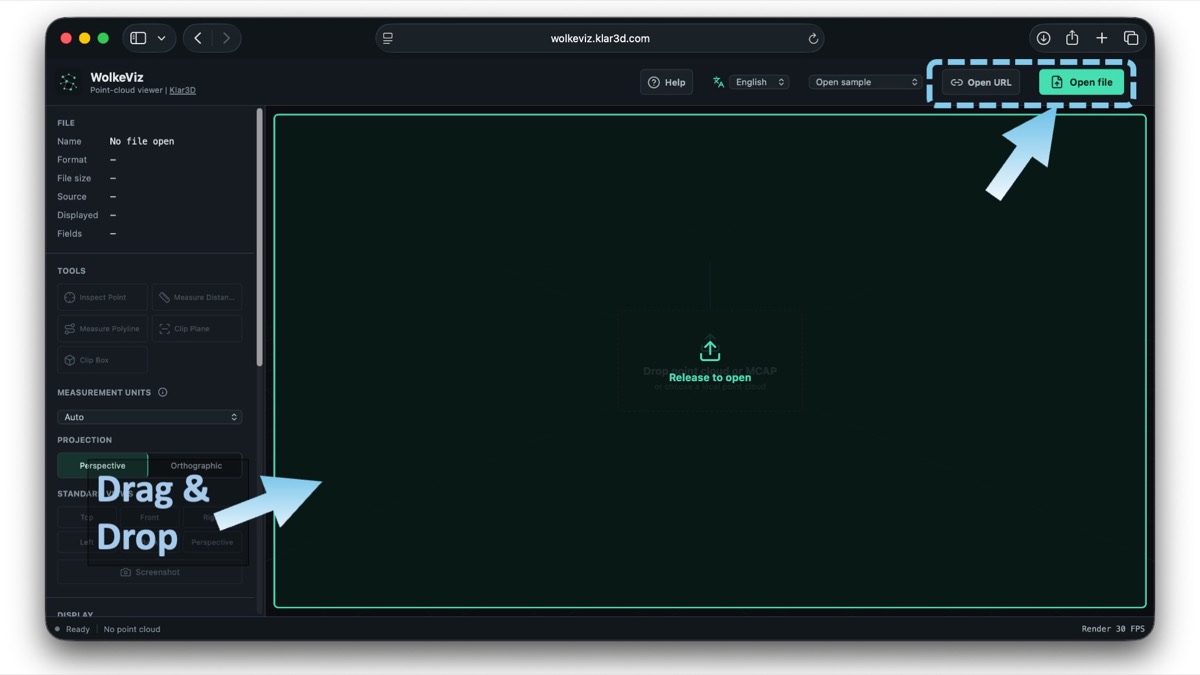
1. Drag and drop the LiDAR file, or choose Open file
Open WolkeViz in a modern browser, then drag your file into the viewer or click Open file. Local files are read and processed on your computer; you do not need to install CloudCompare, log in, or create an account to inspect them.
WolkeViz supports single PLY, PCD, LAS, LAZ, and COPC files. It also supports ZIP sequences containing PLY, PCD, LAS, or LAZ entries; multiple selected PLY, PCD, LAS, or LAZ files as an ordered sequence; and indexed ROS 2 MCAP recordings with sensor_msgs/msg/PointCloud2 streams.
2. Check the file details after it opens
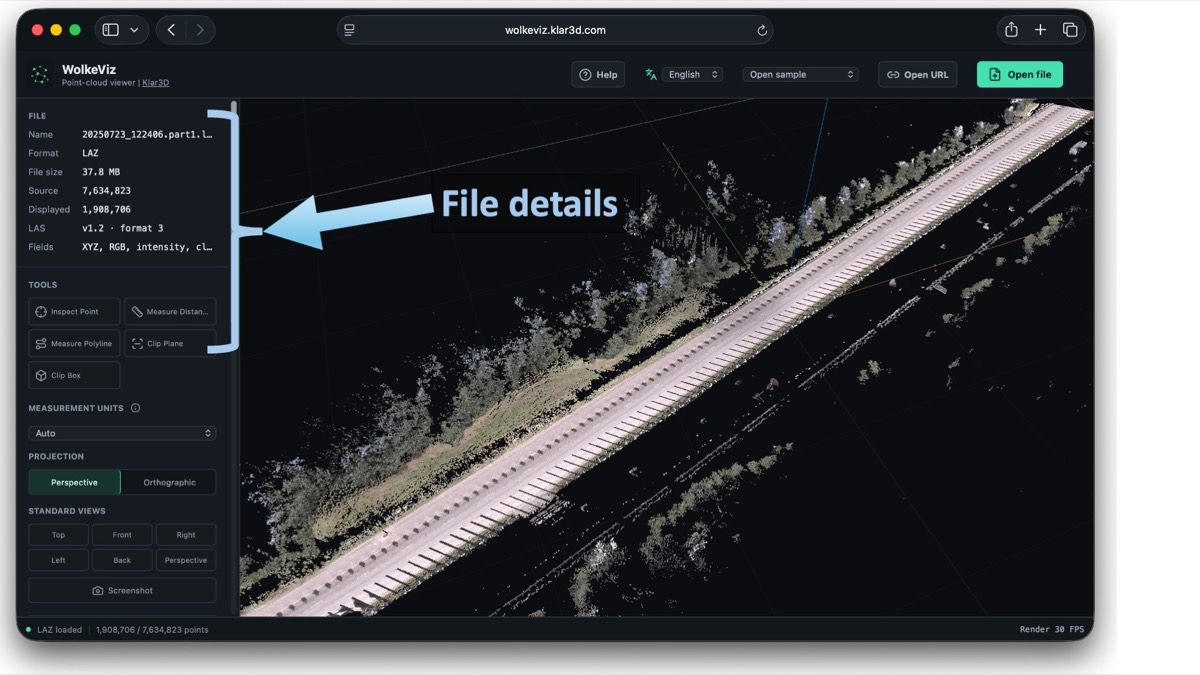
Once the point cloud loads, the left panel lists useful facts before you start interpreting the scene: filename, format, file size, source point count, displayed point count, and available fields. This is a fast way to confirm that the correct dataset opened and to see whether it contains XYZ only or fields such as RGB, intensity, and classification.
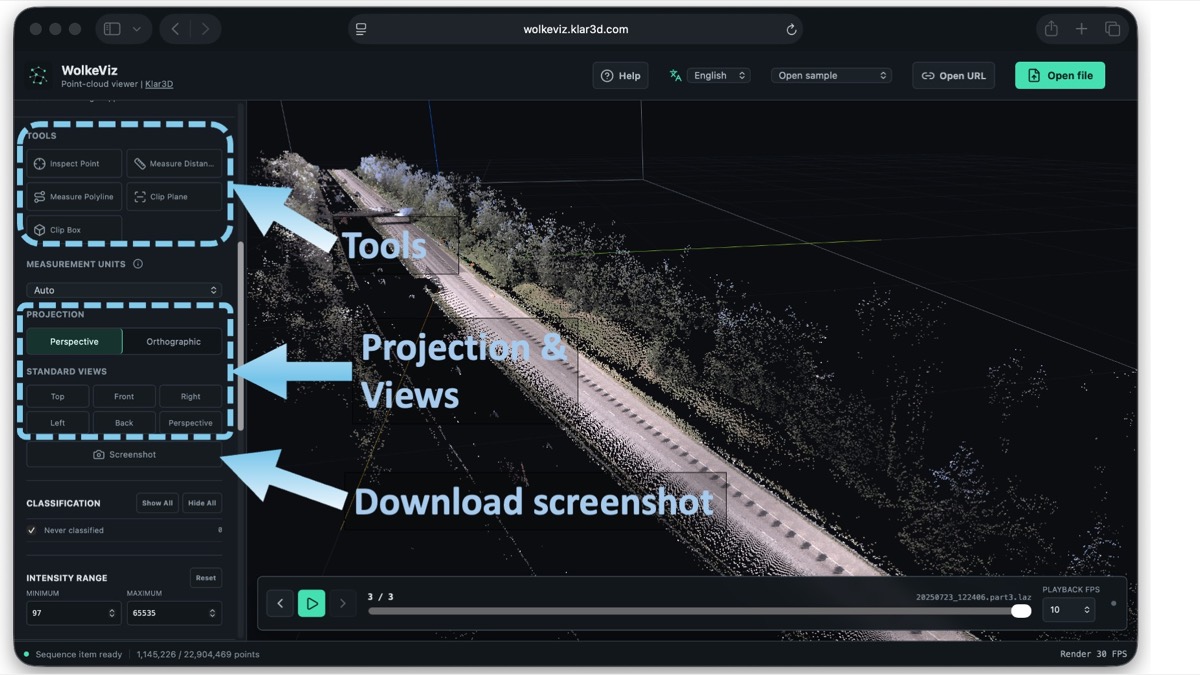
3. Use the tools, projection, and standard views
The left panel provides Inspect Point, Measure Distance, Measure Polyline, Clip Plane, and Clip Box. Use the mouse to orbit, zoom in and out, and inspect the scene from different angles. Hold Shift while click-dragging to pan the view.
Switch between perspective and orthographic projection, then use the standard top, front, right, left, and back views when a controlled orientation makes coverage or elevation easier to judge. You can also download a screenshot of the current 3D view.
4. Filter and style the points
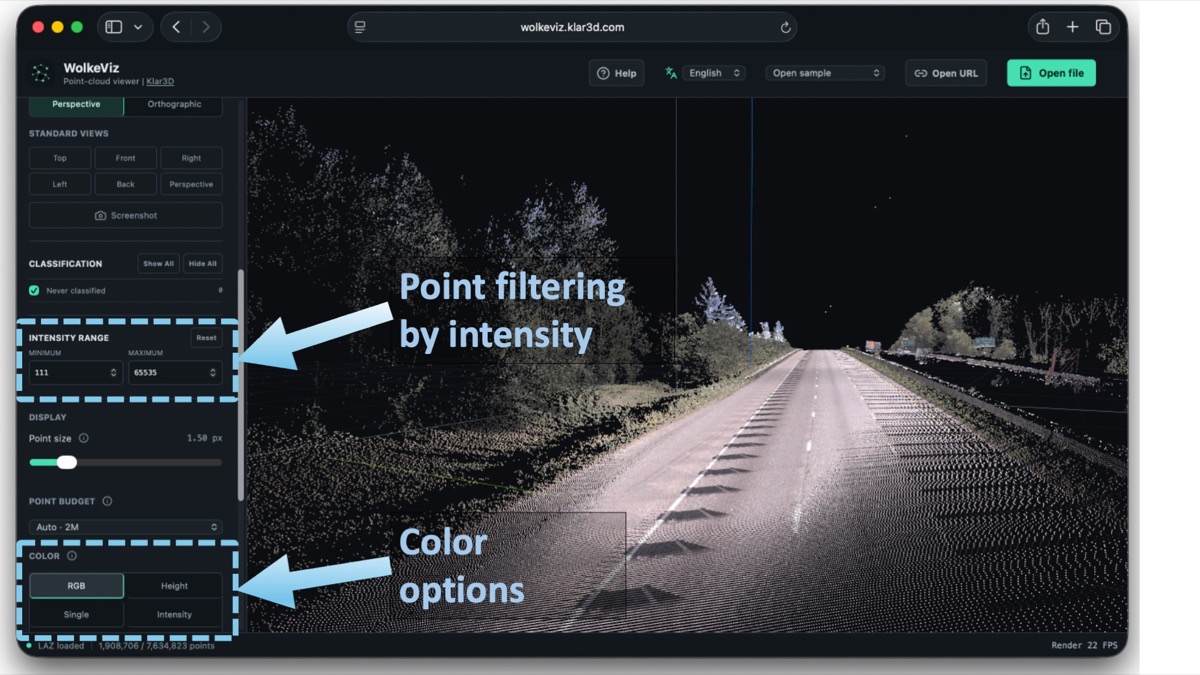
Scroll farther down the panel for more controls. When the source data provides the attributes, you can filter points by intensity, show or hide classifications, adjust point size, and colour the cloud by RGB, height, a single colour, or intensity. Use Clip Box or Clip Plane to focus on the part of the dataset that matters.
RGB can make a site or street recognizable. Height colouring reveals vertical structure. Intensity can reveal changes in LiDAR returns, while classification can separate classes such as ground, vegetation, buildings, or vehicles when the source uses those codes.
5. Accumulate spatially contiguous LiDAR files
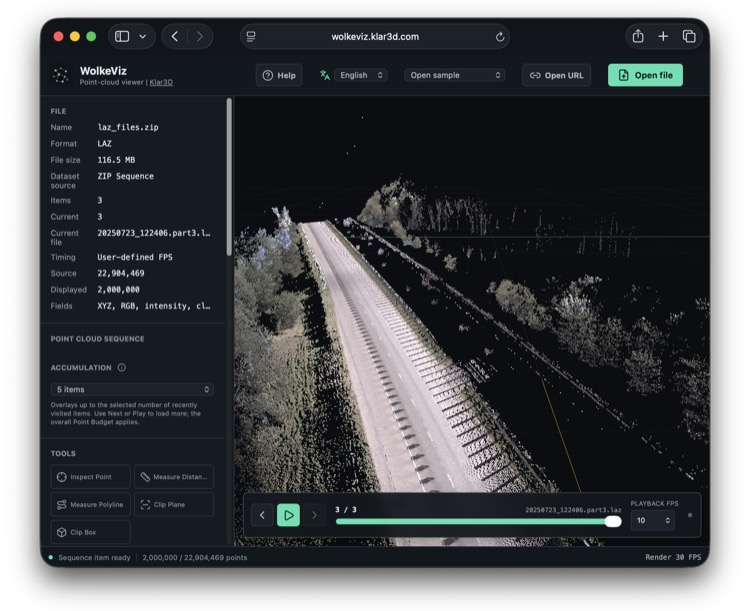
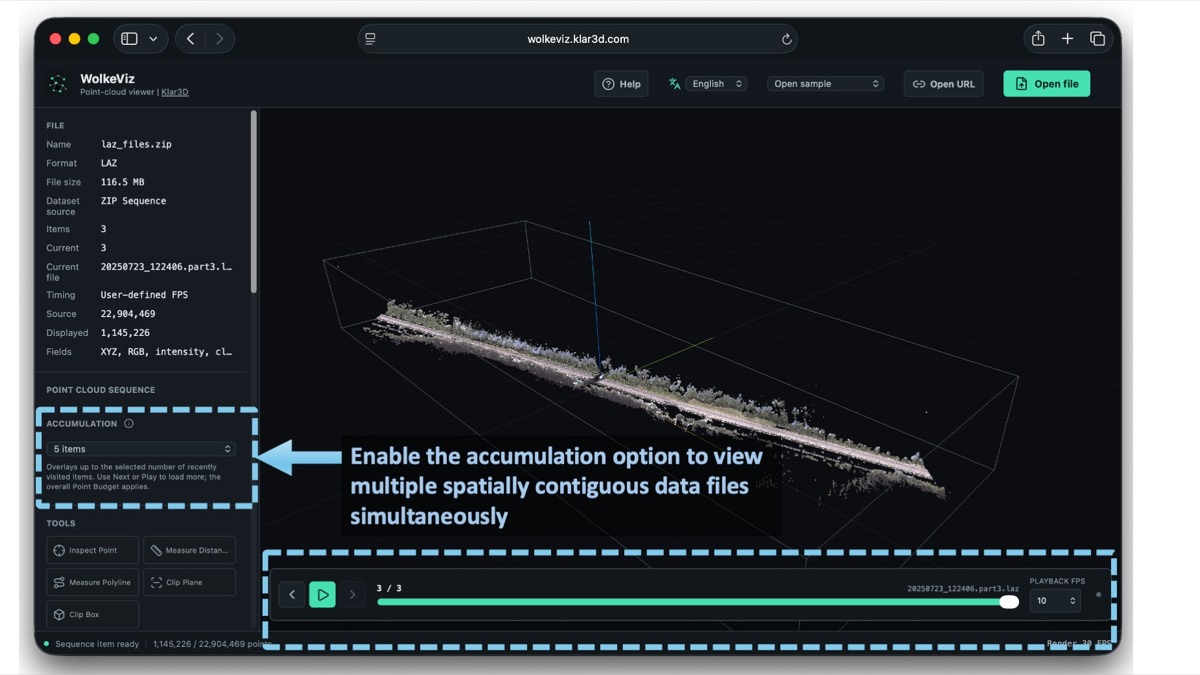
For GIS or other spatially contiguous LiDAR data stored as a sequence, enable Accumulation and use Next or Play to load additional files. WolkeViz overlays the selected number of recently visited files, making it easier to inspect a continuous road, corridor, or survey area instead of viewing one tile at a time. The shared point budget still applies, so use a lower accumulation count if the scene becomes too dense.
Measure and isolate a useful area
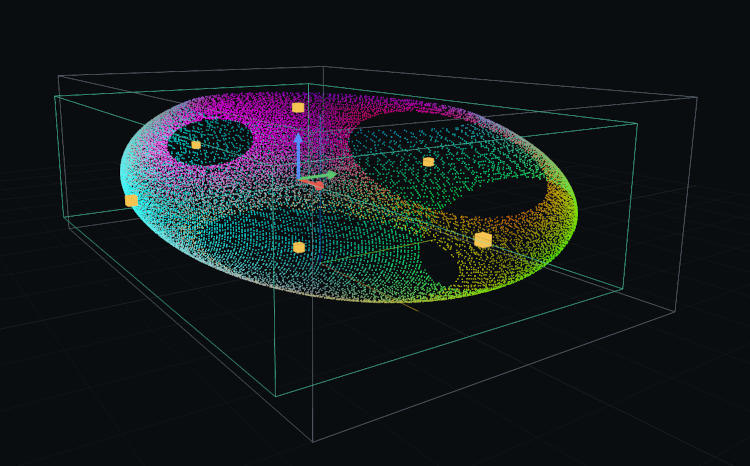
Use a distance or polyline measurement to compare a known object or check the approximate scale. Confirm the coordinate units before treating the result as metres or feet. Then use a clip box or plane to focus on a façade, road segment, vehicle, or small section of an aerial survey.
Watch Open ROS 2 MCAP & Measure Distance in Klar3D WolkeViz , or explore more examples on the Klar3D YouTube channel .