
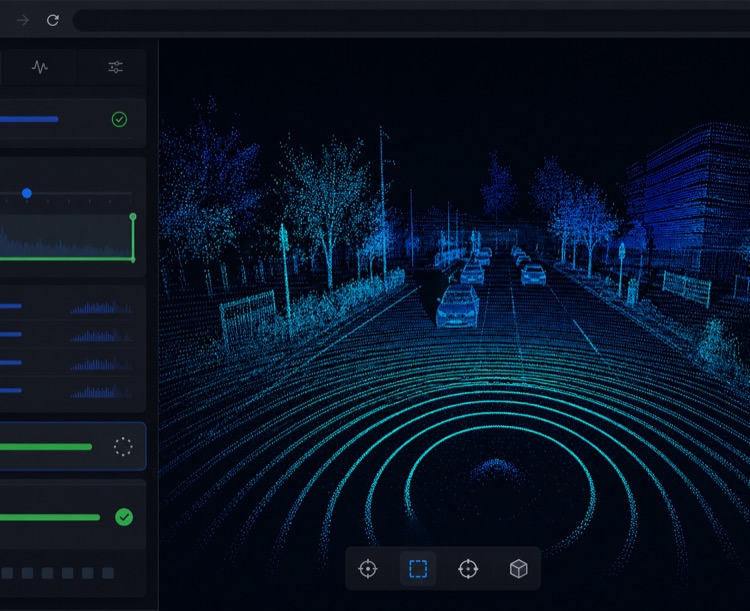
Open WolkeViz View MCAP data first
1. Open WolkeViz in a browser
Open WolkeViz in a modern browser. You do not need to log in or create an account to open and view local files. A laptop or desktop is recommended because it gives you room for the 3D view, the left-side controls, and the export settings.
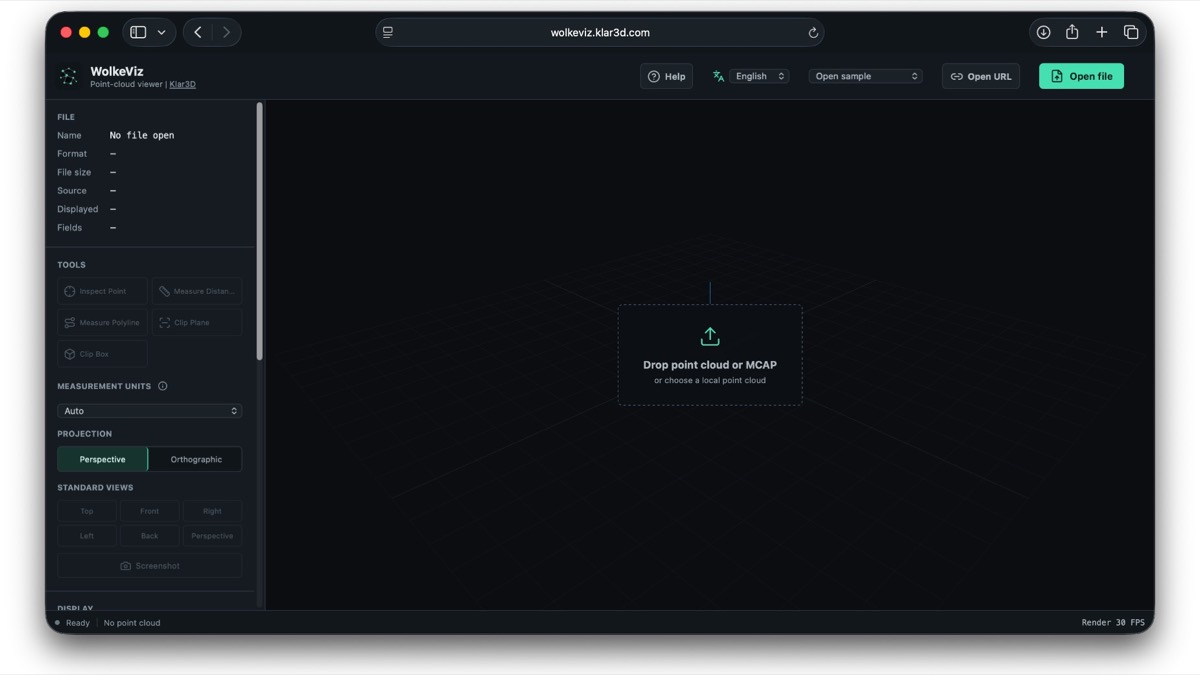
2. Drag and drop the MCAP file, or choose Open file
Drag a local .mcap recording onto the viewer, or click Open file and navigate to it. This workflow supports indexed ROS 2 MCAP recordings containing sensor_msgs/msg/PointCloud2 data. The file stays on your computer and is read directly in the browser.
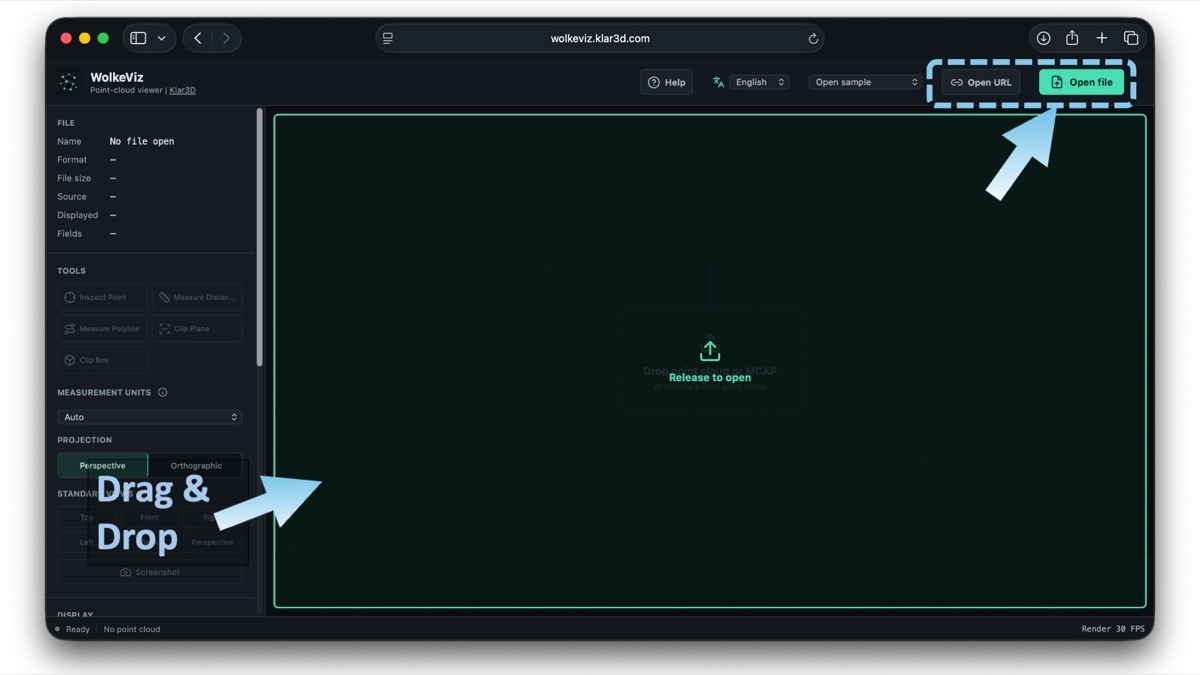
3. Select the supported PointCloud2 topic
After loading, WolkeViz reads the recording details and looks for compatible PointCloud2 topics. If there is one supported topic, it is selected automatically. If the recording has multiple point-cloud topics, select the LiDAR stream you want before exporting frames.
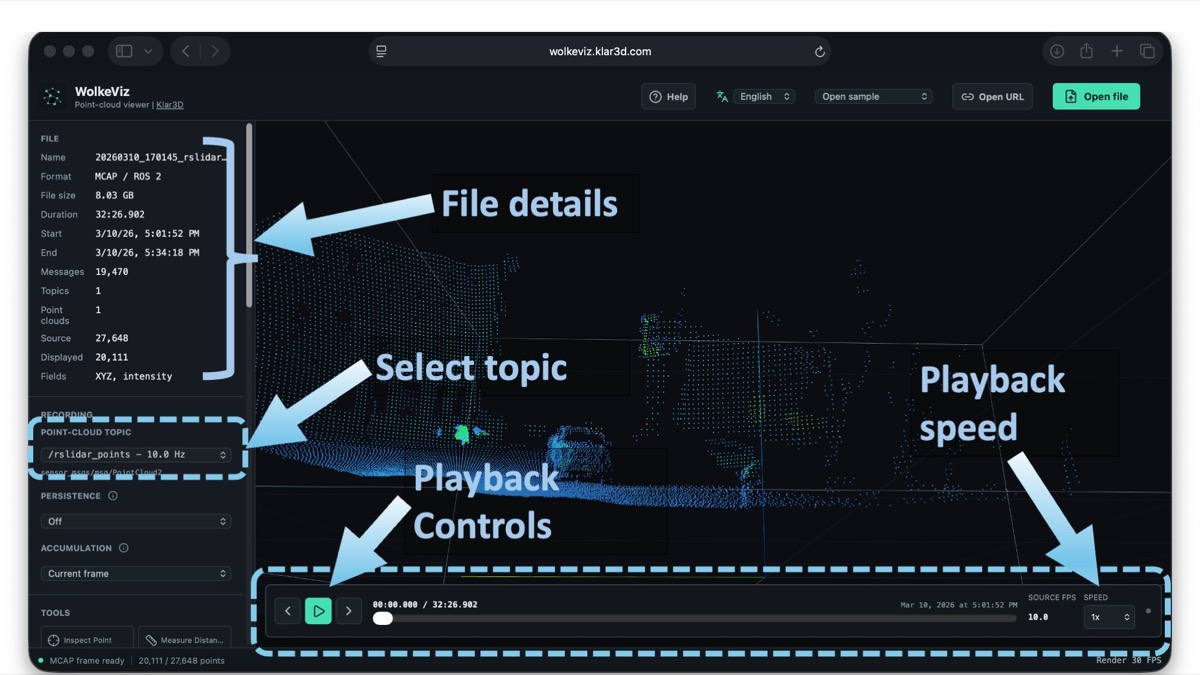
4. Scroll the left panel and click Export
Scroll the left-side tools panel until you find Export, then click it. Export works from the selected PointCloud2 topic and lets you prepare either one current frame or a selected set of frames.
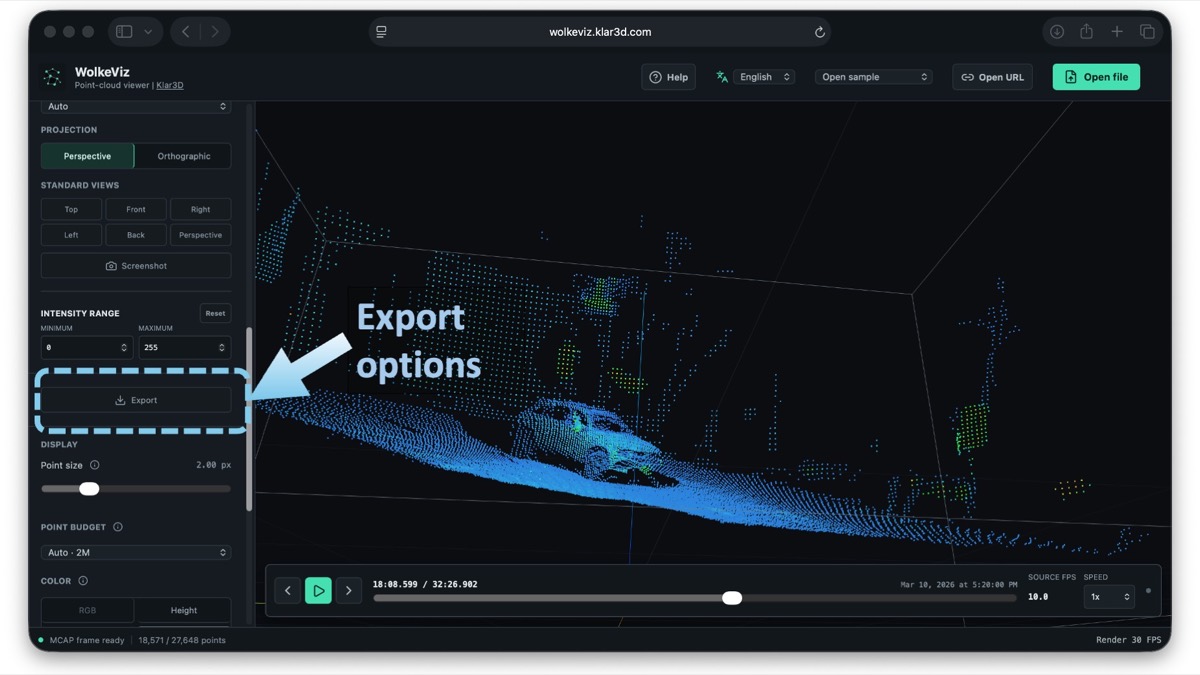
5. Export the current frame as PCD
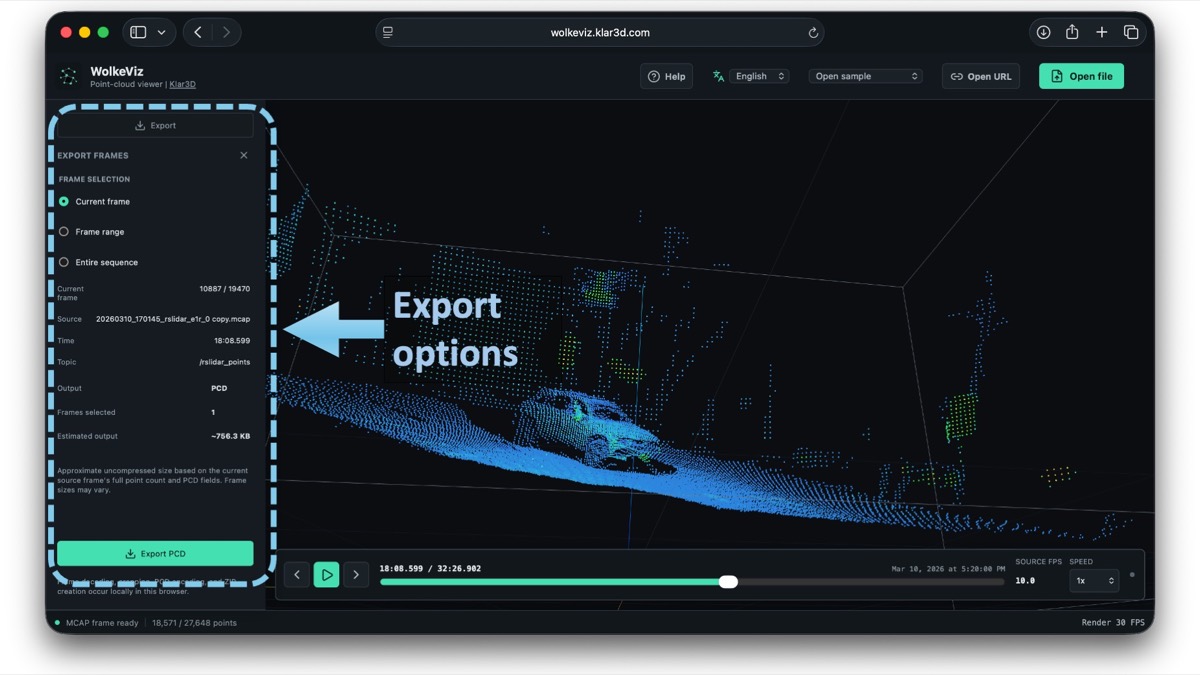
The Export panel opens with several choices. To download only the frame currently shown in the viewer, select Current frame and click Export PCD. The result is a binary PCD point-cloud file that you can use as a compact sample or open in another compatible point-cloud tool.
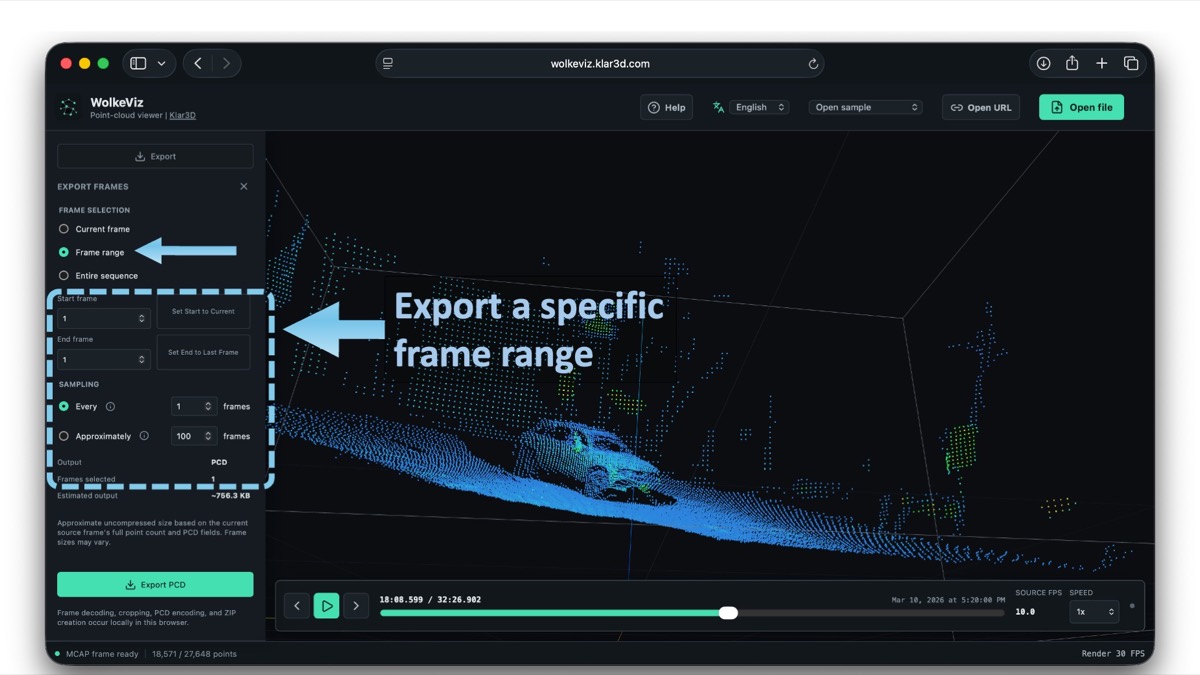
6. Export a specific frame range
Select Frame range, then enter the first and last frame numbers you need. Within that range, choose one of two sampling methods:
- Every N frames downloads one frame, skips the next N−1 frames, and repeats.
- A fixed number of equally spaced frames distributes the requested number of frames across the selected start/end range.
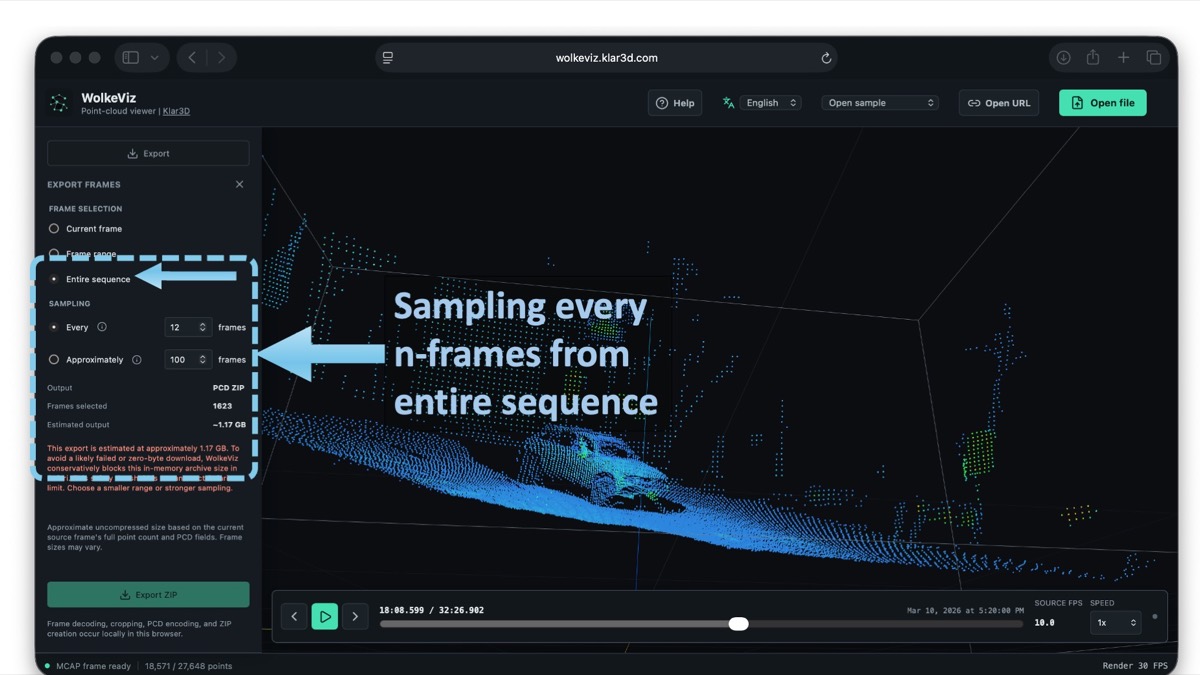
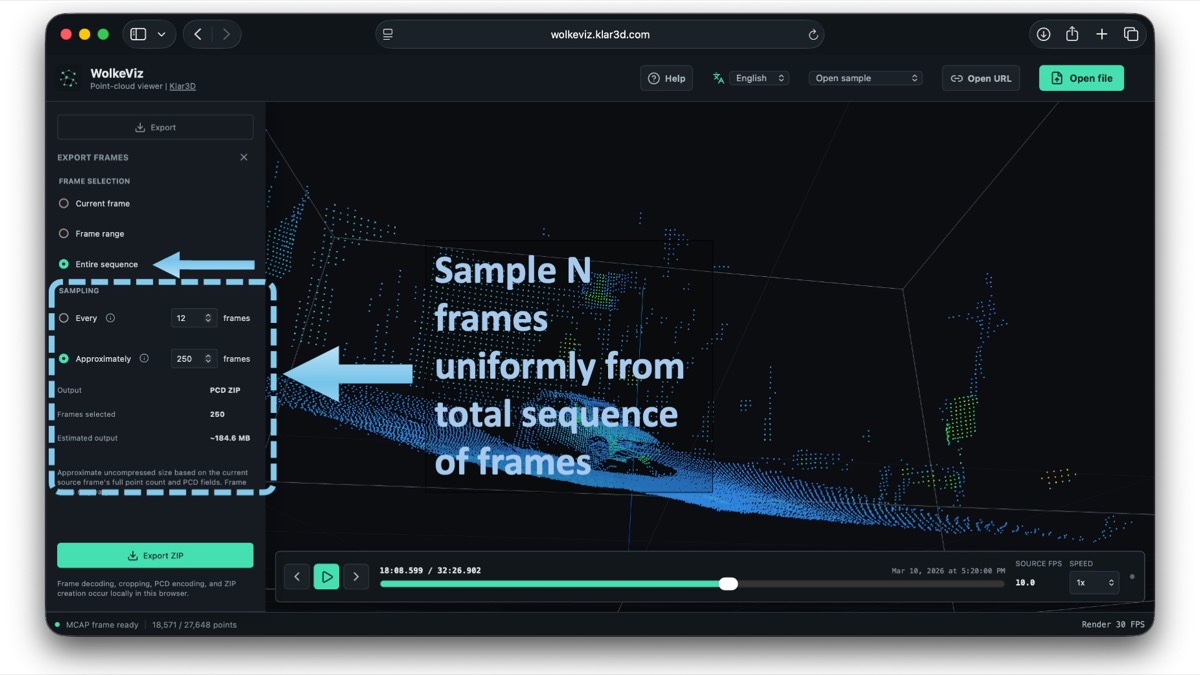
7. Sample from the entire sequence
Choose Entire sequence when you want to select frames from the complete recording. You can export every N frames or ask for a fixed number of frames distributed across the entire sequence. Setting every N to 1 exports every frame.
Large all-frame exports produce large ZIP files and can take time or exceed available browser memory. For the most stable workflow with substantial recordings, prefer current versions of Chrome or Firefox and export a representative interval when you do not need every frame.
8. Download a fixed number of equally spaced frames
For a smaller, evenly distributed dataset, choose the number of frames you want rather than an interval. WolkeViz selects that many frames across the selected range—or the entire sequence—so the output covers the recording without exporting every scan.
9. Click Export ZIP to download the PCD frames
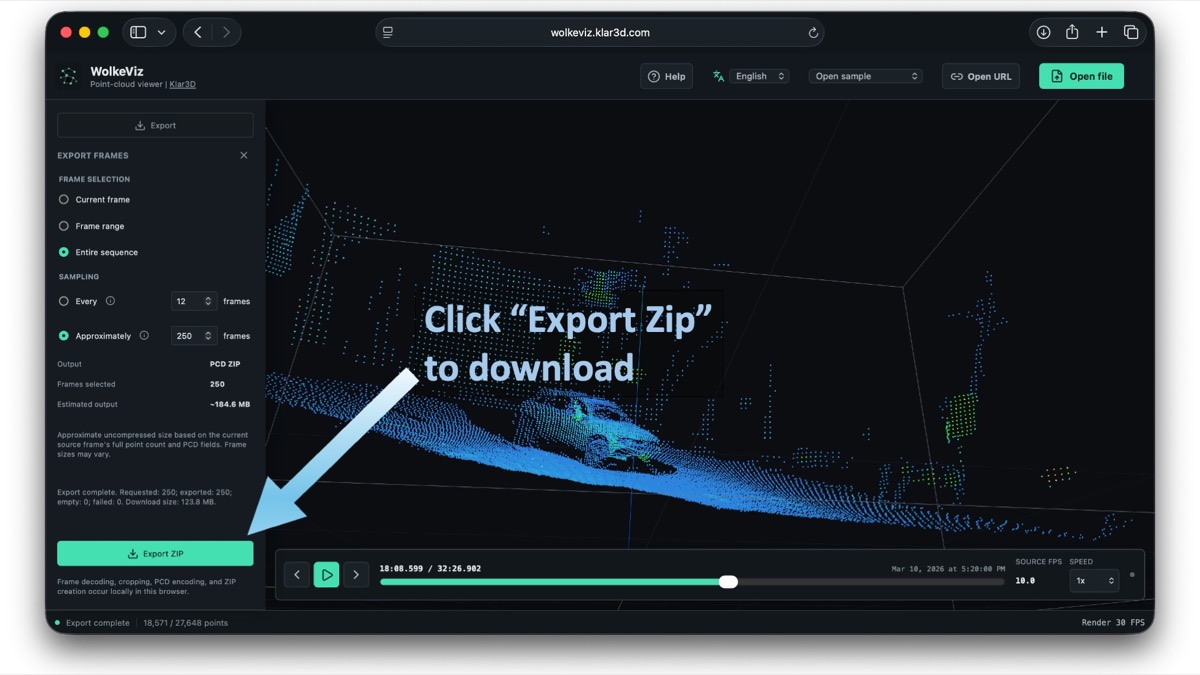
Once the selection is correct, click Export ZIP. WolkeViz creates a ZIP containing the selected binary PCD frames and a provenance manifest that records the source and selection details. This is useful for building annotation samples, sharing a reproducible subset with colleagues, or preparing a smaller evaluation dataset.
A quick inspection path
WolkeViz makes it easy to inspect and verify an indexed ROS 2 MCAP PointCloud2 recording before committing to a larger processing pipeline. Open the file locally, confirm the right LiDAR topic, step through frames, measure or clip a scene if needed, and export only the samples that are useful—without an upload queue, login, or conversion setup.
WolkeViz is designed for supported sensor_msgs/msg/PointCloud2 streams, not every MCAP schema. For a general introduction to the container format, read What Is MCAP?.